
How to Translate a Live Event Into Multiple Languages at Once
Choosing the Input and Output Language in Captional
One of the most common questions we receive is, “How do attendees choose their language?”
The key is understanding the difference between:
• Input Language (the language being spoken)
• Output Language (the language each viewer wants to read)
If you’re hosting a church service, conference, or community event and want to provide real-time captions and live translations into multiple languages, just follow these steps.
For Viewers: How to Choose Your Caption Language
When someone joins your event to read captions on their phone, tablet, or laptop, they can choose their preferred language directly from the viewer app.
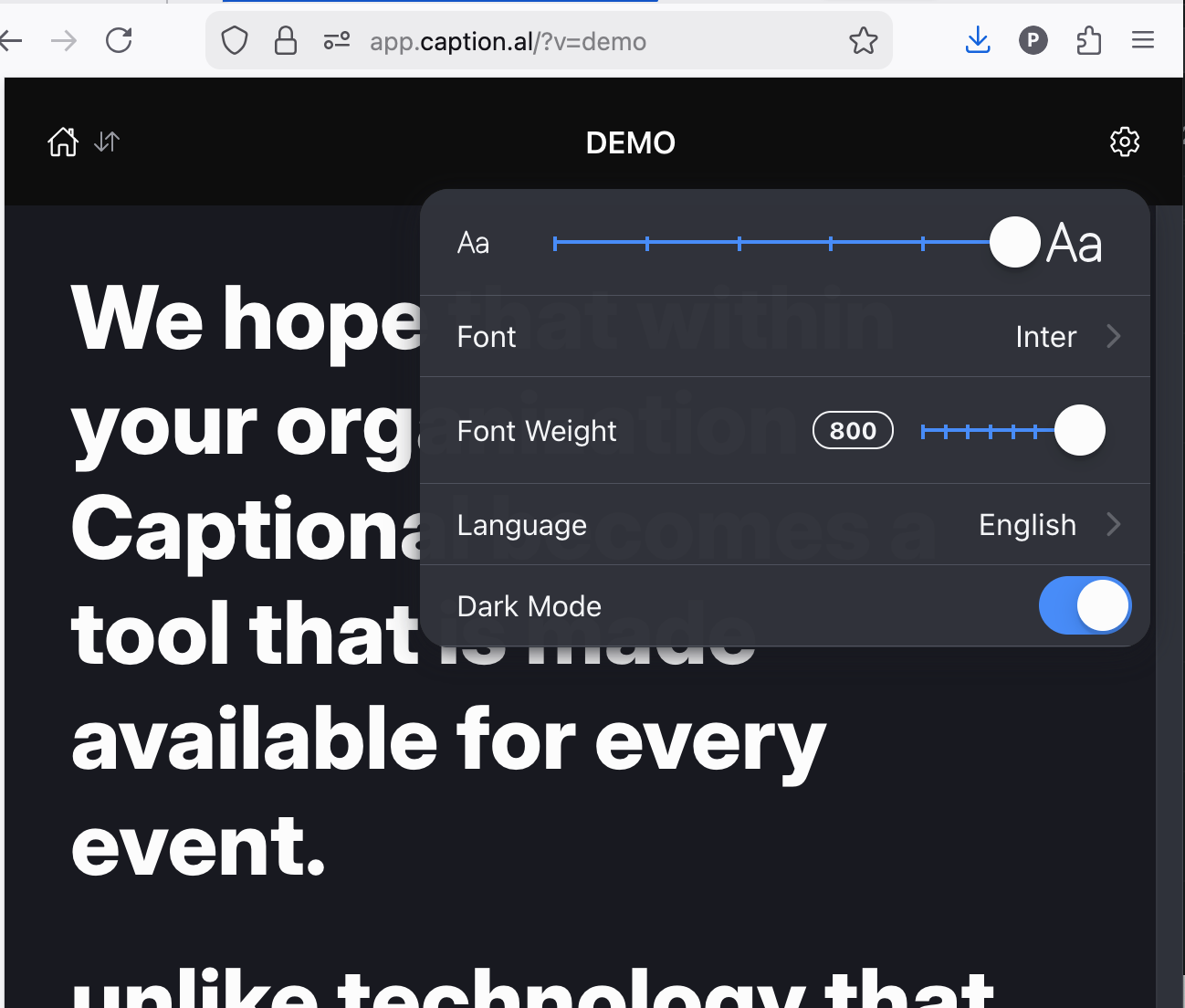
1. Open the event link
2. Click the Settings icon in the top-right corner.
3. Select your preferred output language.
4. Captions will immediately appear in that language.
Each viewer controls their own experience. That means one person can read captions in English, another in Spanish, another in Portuguese — all during the same live session.
This is what makes live multilingual captions possible without translation headsets or special equipment. It’s real-time caption translation delivered directly to personal devices.
-
In the viewer app, tap on the translated paragraph to switch between the translation and the original language.
⸻
For Streamers: How to Select the Spoken (Input) Language
On the streamer side — the person running captions during the event — you’ll choose the language being spoken.
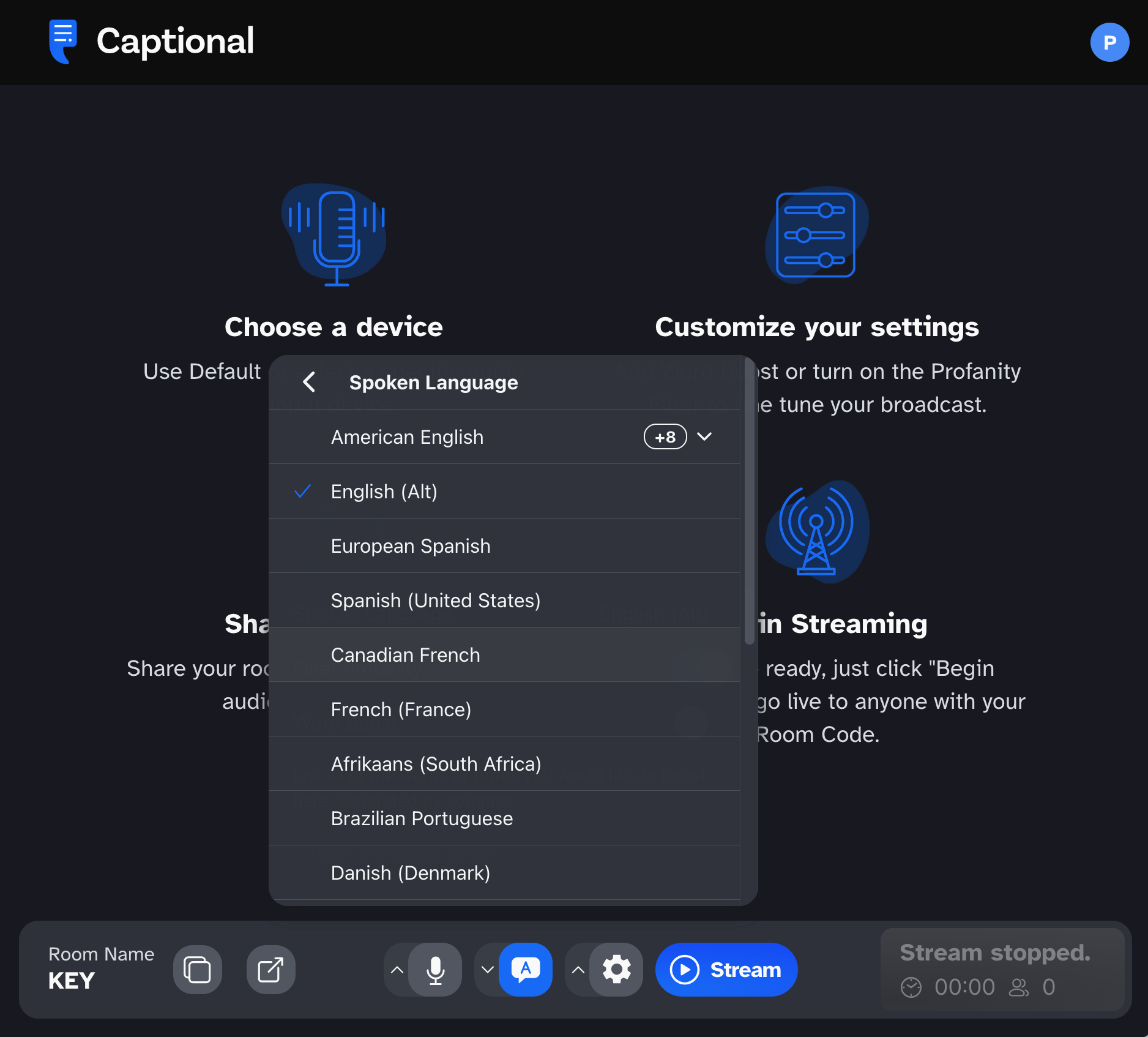
1. Log into the Captional Streamer Dashboard.
2. Find the Input / Spoken Language setting.
3. Choose the language being spoken on stage.
4. Begin streaming captions.
This tells Captional what language to transcribe. From there, the platform generates real-time AI captions and makes them available for translation into whatever output languages viewers select.
⸻
How Real-Time Translation Works During Your Event

Here’s what happens behind the scenes:
1. Speech is transcribed live.
2. Captions are generated instantly.
3. Each attendee’s device translates captions into their selected language.
4. Updates continue as the speaker talks.
Because viewers choose their own output language, Captional supports:
• Translating into multiple languages at once
• Simultaneous caption translation
• Multilingual church services
• International conference accessibility
• Inclusive in-person events
All without adding extra staff or hardware.
⸻
Why This Matters for Churches and Conferences

Many churches and organizations want to provide live translation during services, but traditional interpretation systems can be expensive and complicated.
Captional makes it simple:
• Attendees scan a QR code.
• They select their language.
• They begin reading captions instantly.
Whether you’re supporting bilingual congregations, international guests, or accessibility compliance, Captional provides real-time captions and translation for in-person events in a way that feels seamless.
⸻
If you’d like to see how multilingual live captions work, try the demo here:
https://app.caption.al/?v=demo
And if you have questions about setting up input and output languages for your next event, we’re always happy to help.
